Camtasia online supports the following web browsers:
- Google Chrome (Recommended)
- Microsoft Edge
Note: Camtasia online may work in Chromium-based web browsers (Arc and Opera), but these are not fully supported.
Browser Permissions
The first time you record with Camtasia online, the browser prompts you for permission for Camtasia to record screen, audio, and camera.
To accept the site permissions based on your web browser, continue with the following:
Google Chrome
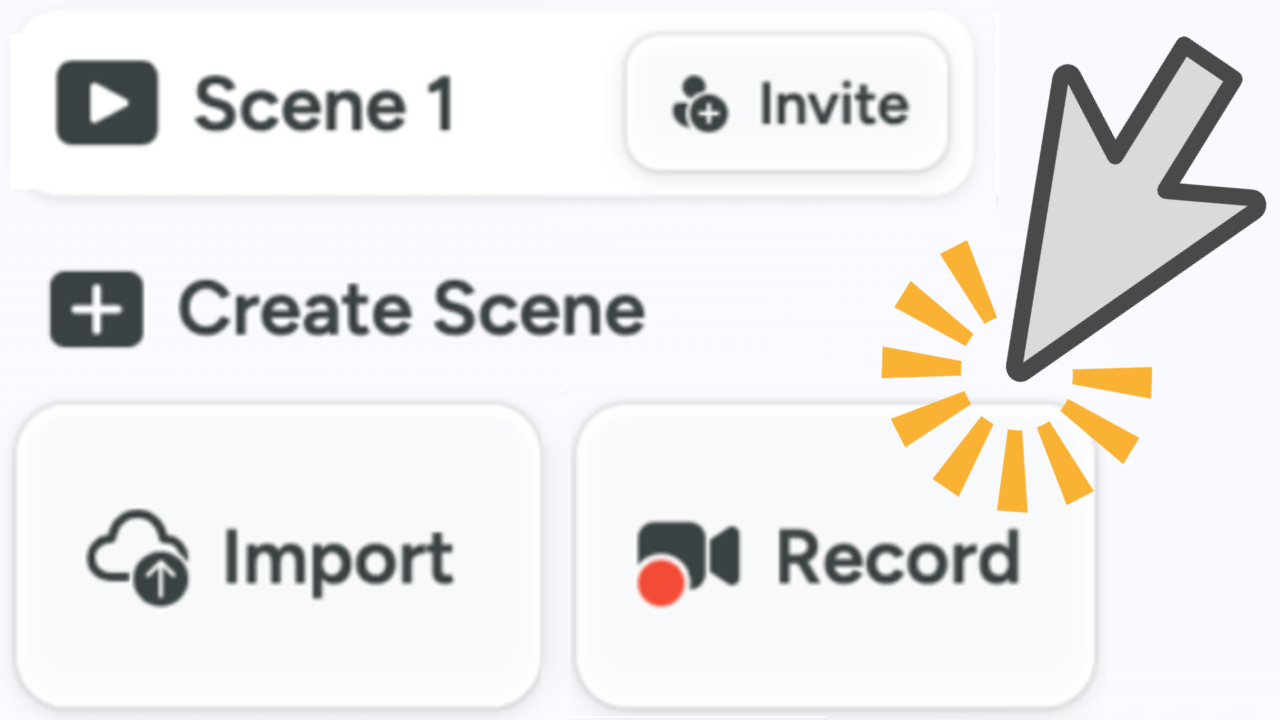
- After selecting what to record for the scene (Screen, Camera, or Screen and Camera), the camera permissions dialog appears. Click Allow while visiting the site or Allow this time.
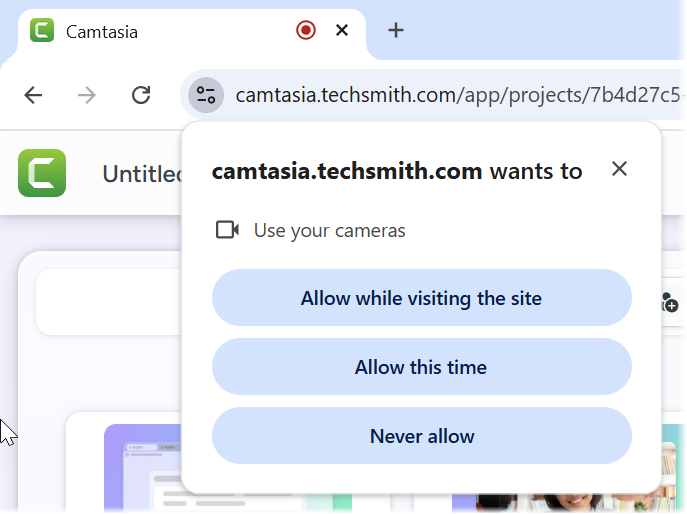
- Google Chrome enables Camtasia access to the camera. Next, select what to share from the screen: a Chrome tab, a window, or the entire screen.

- Enable the Also share tab audio option to record the system audio from a Chrome tab or the Also share system audio option to record the sound from your computer when recording the entire screen.
- Click the Share button.
- The microphone permissions dialog appears. Click Allow while visiting the site or Allow this time.
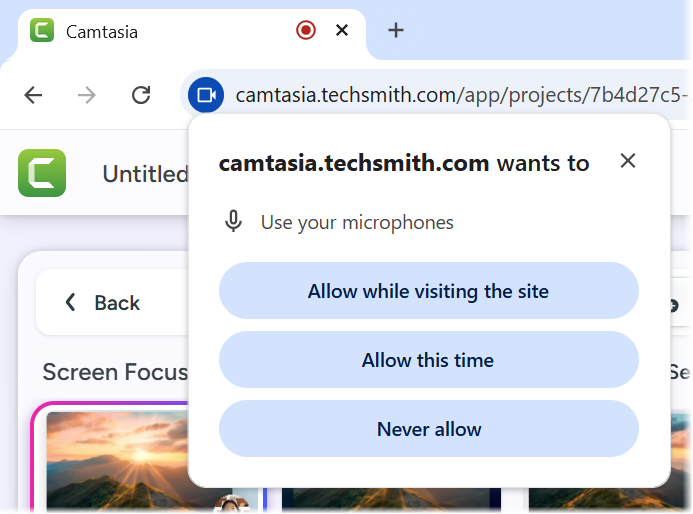
- You can change the site permissions or recording settings at any time:
- To change the selected recording streams (microphone, camera, or screen) for the scene, click the buttons below the recording preview.
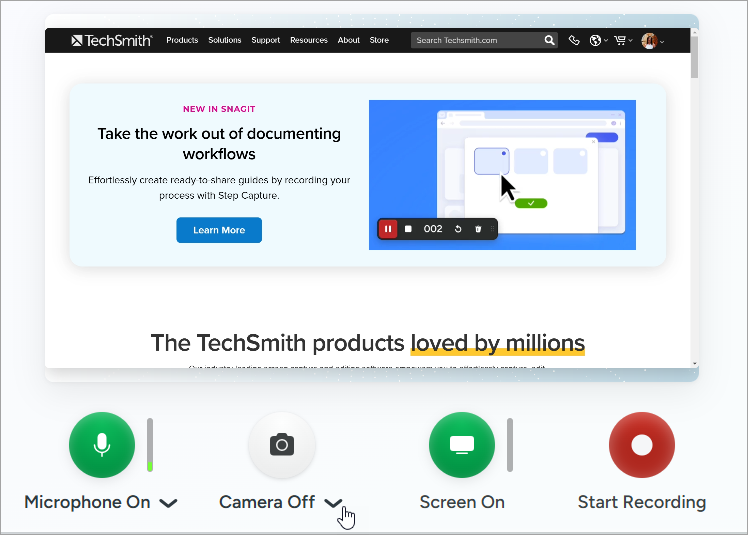
- To select a different recording device, click the dropdown menu for the recording stream (microphone or camera) and select a connected device.
- To change the site-level settings for Camtasia on Google Chrome, click the
 icon in the upper-right corner of the browser window and select Settings > Privacy and security > Site Settings.
Safari
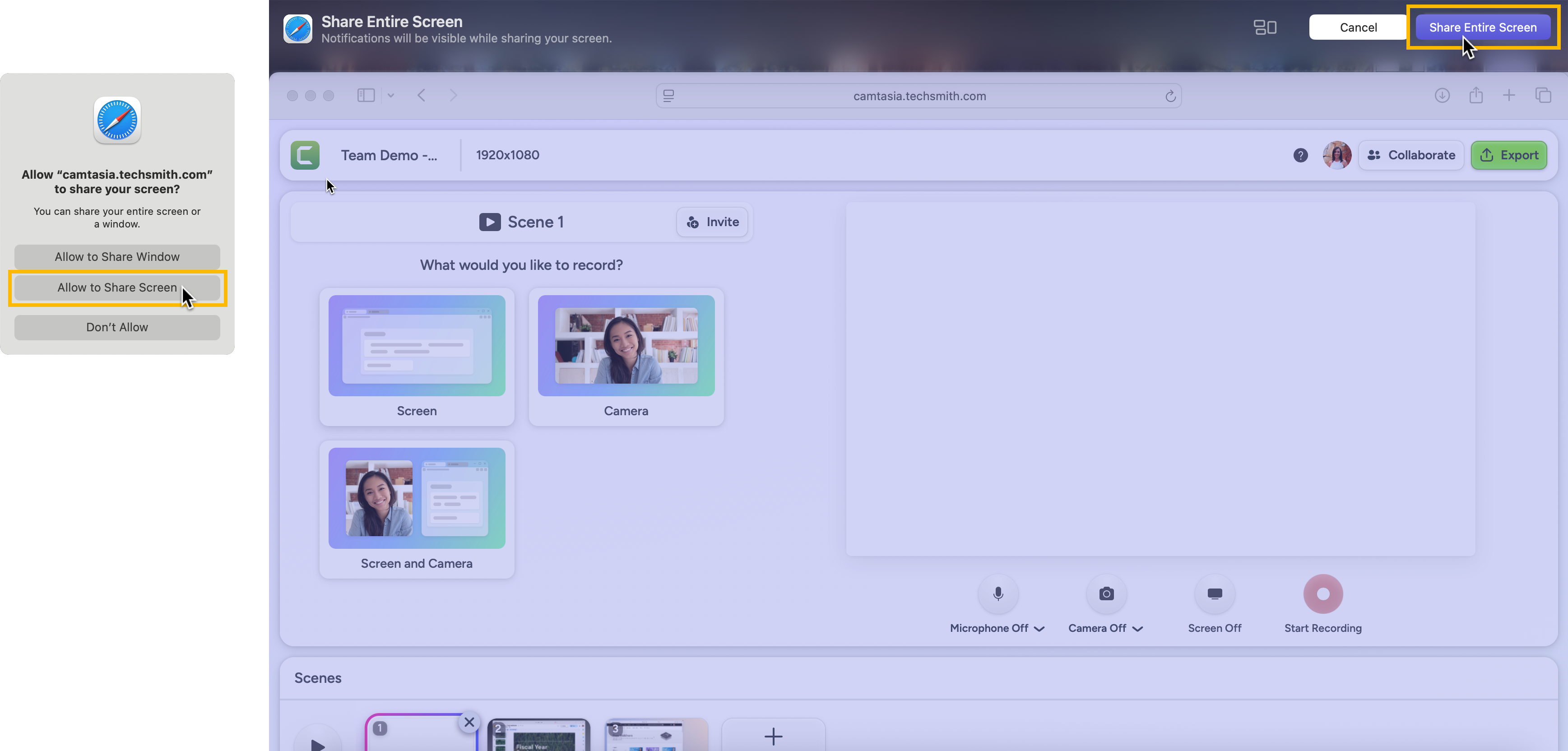
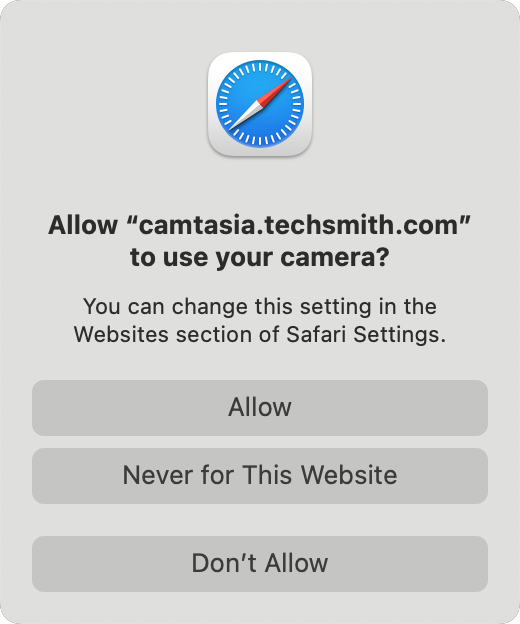
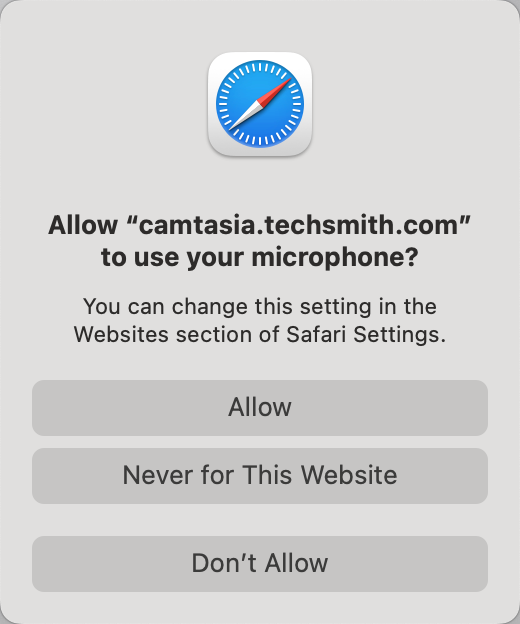
- Choose what to record for the scene: Screen, Camera, or Screen and Camera.
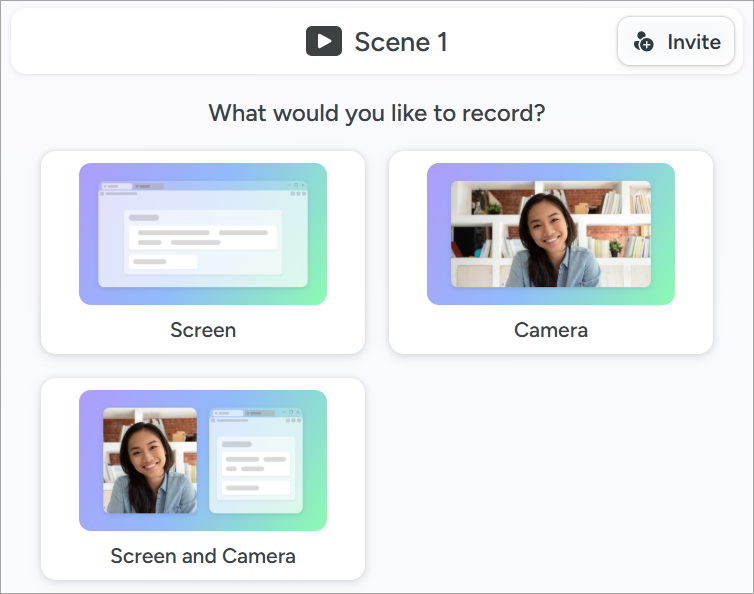
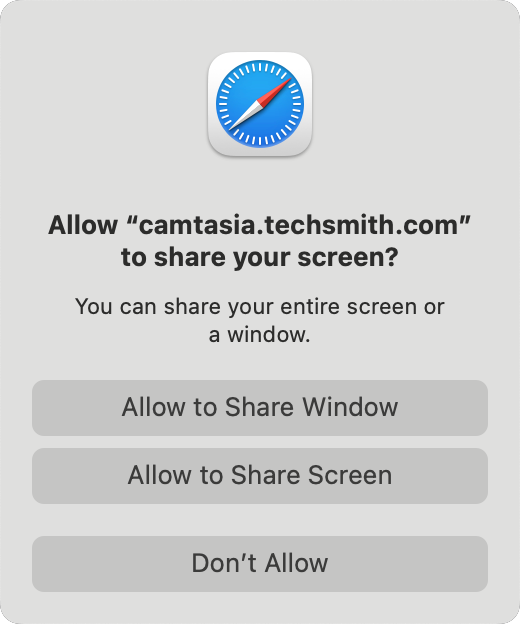
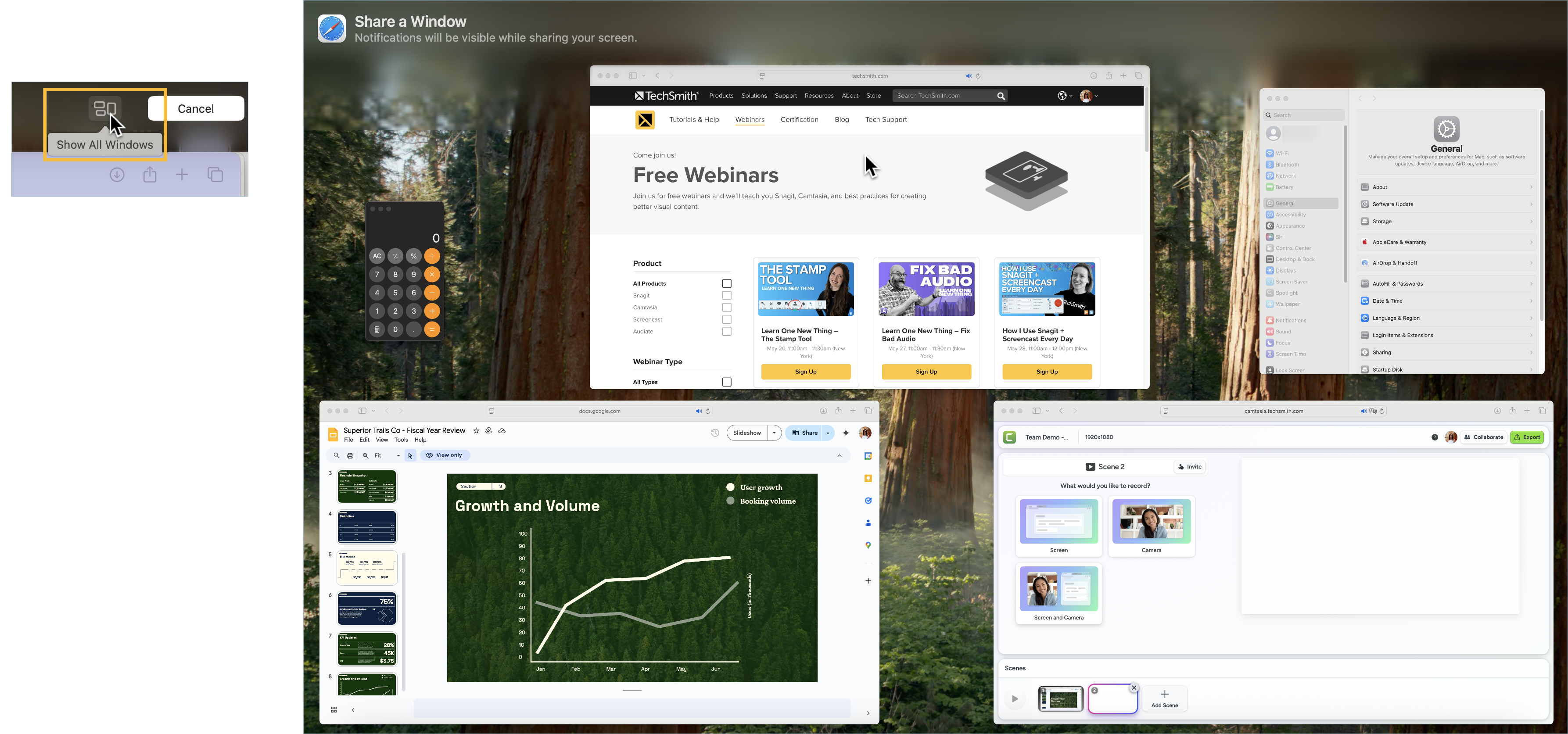
- A series of permissions dialogs appear. Complete the following based on your previous recording selection:
- You can change the settings or the selected audio or camera device prior to recording:
- To turn on or off the selected recording streams (microphone, camera, or screen) for the scene, click the buttons below the recording preview.
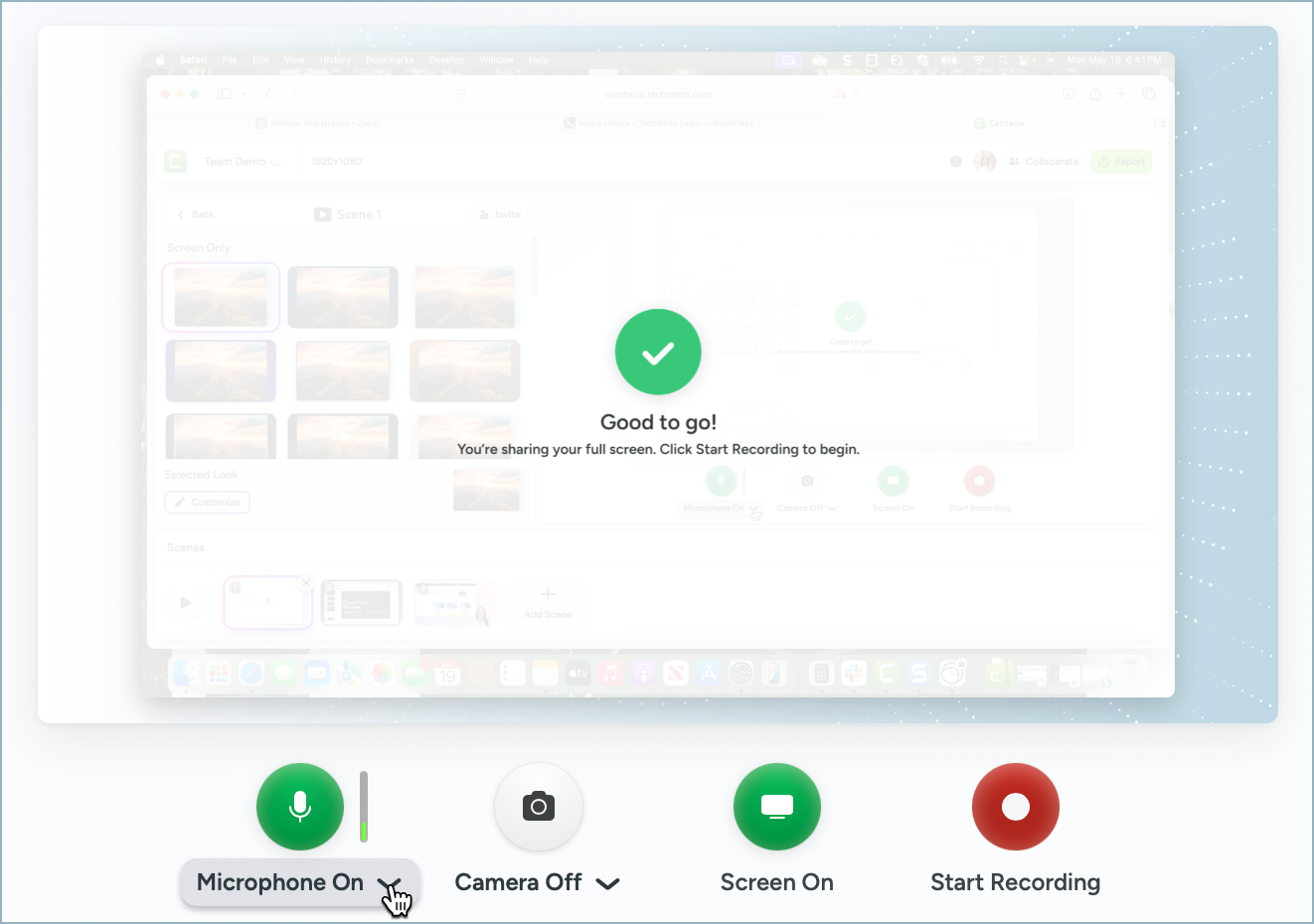
- To select a different recording device, click the dropdown menu for the recording stream (microphone or camera) and select a connected device.
After setting up the scene and permissions, you are ready to start your recording.
Reset Safari Permissions
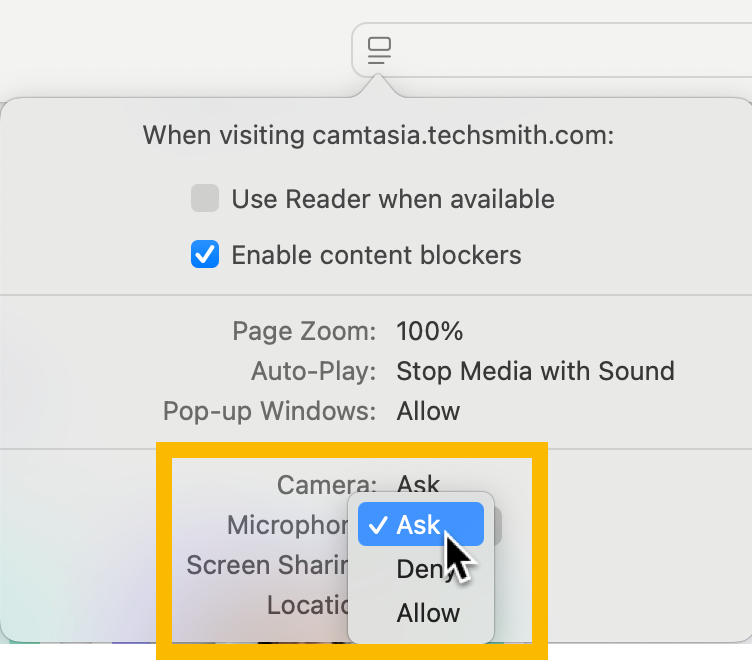
- With the Camtasia online website open in Safari, click the
 icon to the left of the address bar and select Website Settings.
- Change the setting for Camera, Microphone, or Screen Sharing to the Ask or Allow options.
- Click the
 icon to the right of the address bar to reload the page to update the site-level setting.
Alle Camtasia -Tutorials